Huawei Mate X3 review
EMUI 13.1 with no Google Services
The Mate X3 runs on HarmonyOS 3.1 in China and EMUI 13.1 in international markets. Besides the different preinstalled apps, we cannot find a huge difference.
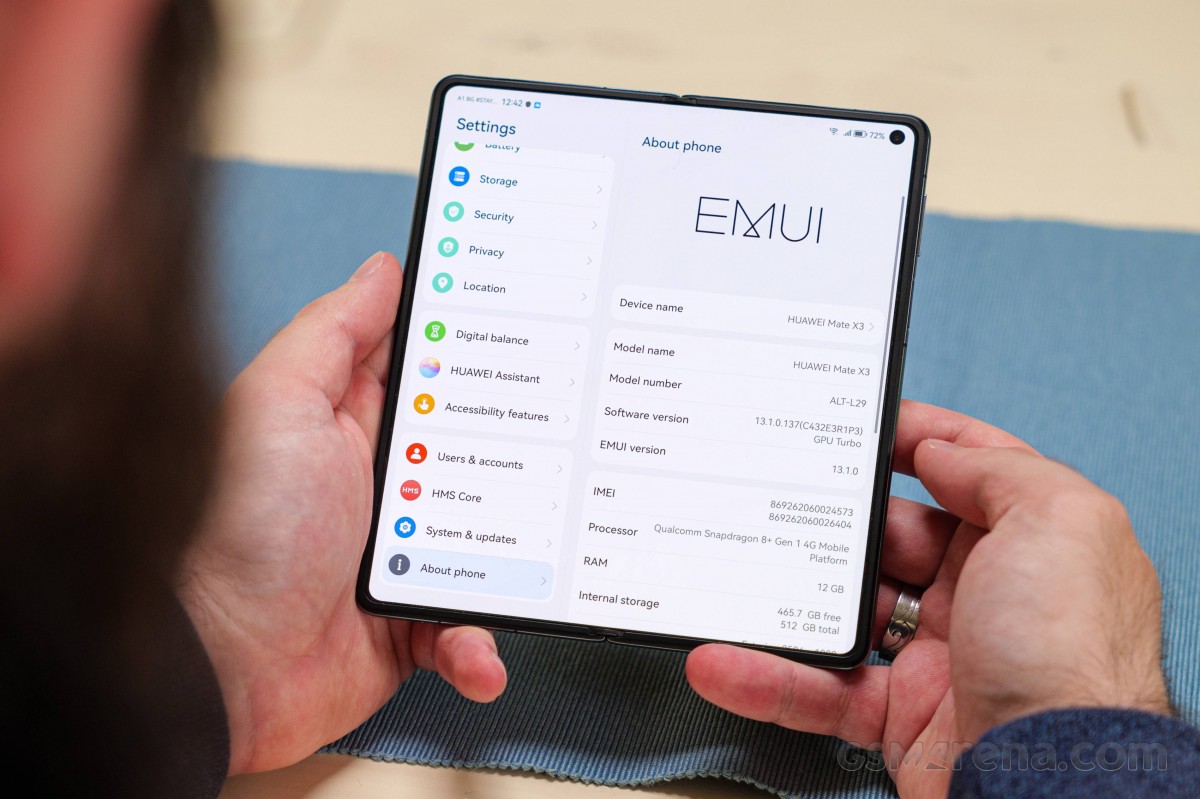
Although it is not officially stated, EMUI still relies on some sort of customized Android at its core. The one major omission is still Google Services. Instead, the EMUI 13.1 relies on Huawei's Petal Search and Petal Maps, Huawei's own services as part of HMS Core, and the AppGallery app store.
This interface looks a lot like its predecessors, with no shortage of customization options, themes, widgets, and whatnot.
EMUI 13 upgrades the previous EMUI 12 with more functional app shortcuts, stacked widgets, resizable smart folders, smart storage space, better sharing options, and improved security and privacy.
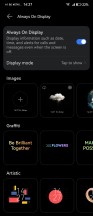
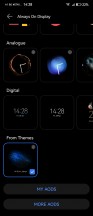
Always-on display is available, and you can choose from a ton of different clock skins. Some of the themes have multiple sub-skins, too. And if that's not enough, you can download even more AOD themes if the pre-installed are not your cup of tea. On the Mate X3, AOD can only be triggered with a tap to show gesture. For some reason, the scheduled always-on option is gone.
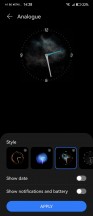

Always-on display
Always-on display is available, and you can choose from a ton of different clock skins. Some of the themes have multiple sub-skins, too. And if that's not enough, you can download even more AOD themes if the pre-installed are not your cup of tea.
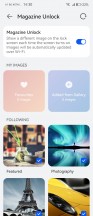
Magazine lockscreen
As we already mentioned, the Mate X3 has a traditional capacitive fingerprint reader embedded inside the power button on the side of the device. The reader is snappy and very accurate. Its location makes using it a bit difficult while the phone is closed, but that's about the only complaint we have with it. Alternatively or concurrently, you can also set up face unlock.
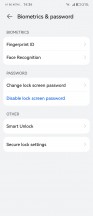
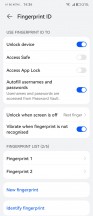
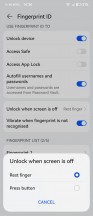

Biometrics
The home screen in EMUI 13.1 is the standard multi-page affair. Interestingly enough, the app drawer option from previous EMUI versions seems to be gone, which means that you are stuck with all of your apps on home screens and inside folders.
EMUI 13 supports large folders, where you can see nine app shortcuts shrunk in a 2x2 space. You don't need to expand this folder to open an app; just tap on its smaller shortcut. You can resize these folders to your liking.
You may notice that some apps are underlined - this means you can swipe on their icon to reveal a small widget. You can either use this widget or pin it on your homescreen.
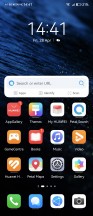
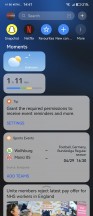
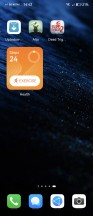
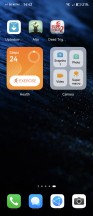
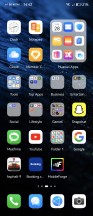
Homescreen • Today • Advanced shortcuts • Advanced shortcuts • Large folder
EMUI 13 brings support for combined widgets - you can combine three widgets into one. There is also new support for stacked widgets - you can stack two or more widgets on top of each other and rotate between them. You can also pull and hold to view all stacked widgets at once, which is neat.
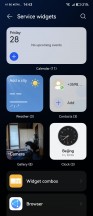
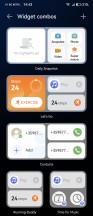
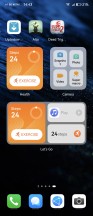
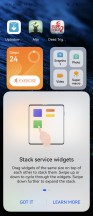
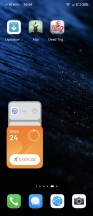
Widgets • Widgets • Combined widgets • Stacked widgets
The leftmost homescreen page, if enabled, is Assistant Today - this is an infotainment place. It houses a newsfeed tailored for you, weather reports, smart suggestions for apps, health info, battery info, AppGallery suggestions, among other things. You can customize this page - there are a lot of information services available by Huawei partners; you can also add game info, scores, and whatnot. This page looks like it's filled with ads at first, we admit that, but you can really make it yours and fill it with interesting stuff.
The Notification Center and Control Center are handled the Apple way - you swipe from the top for both. Imagine an invisible top bar divided into three parts - swiping from the first two invokes the Notification Center, while swiping from the last third brings down the Control Center and its quick toggles.
Meanwhile, swiping down anywhere on the homescreen takes you to the system-wide Search page.
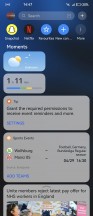
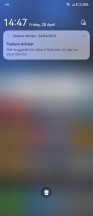
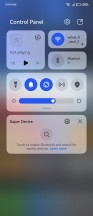
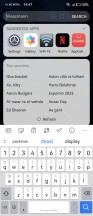
Today • Notifications • Control Center • Search
Huawei's Assistant Celia is available on the Huawei Mate X3 and supports conversations and voice commands. Other Huawei Assistant features are available, too. They include - AI Lens, AI Touch, Tips, Search, Today. We've already explored Today and Search, Tips is self-explanatory, AI Touch allows for quick image/text search by two-finger tap and hold.
AI Lens searches for stuff using the camera and item recognition. This is the fastest way to shop for something you are unfamiliar with - just open AI Lens from the camera or lockscreen and point it to the desired object. You can also identify objects and landmarks with this tool and translate the text with the Lens.
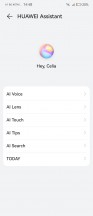
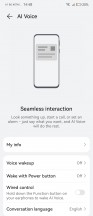
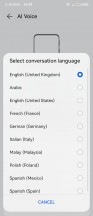
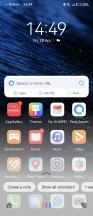
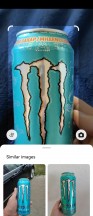
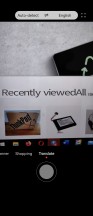
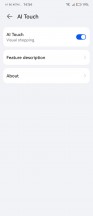
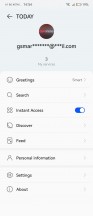
Huawei Assistant
There is also a Theme Store, so you can completely change the look of EMUI 13 whenever you feel it.
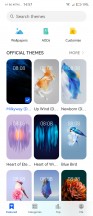
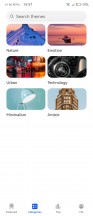
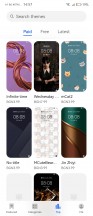
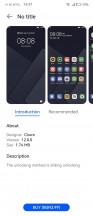
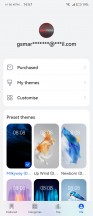
Theme Store
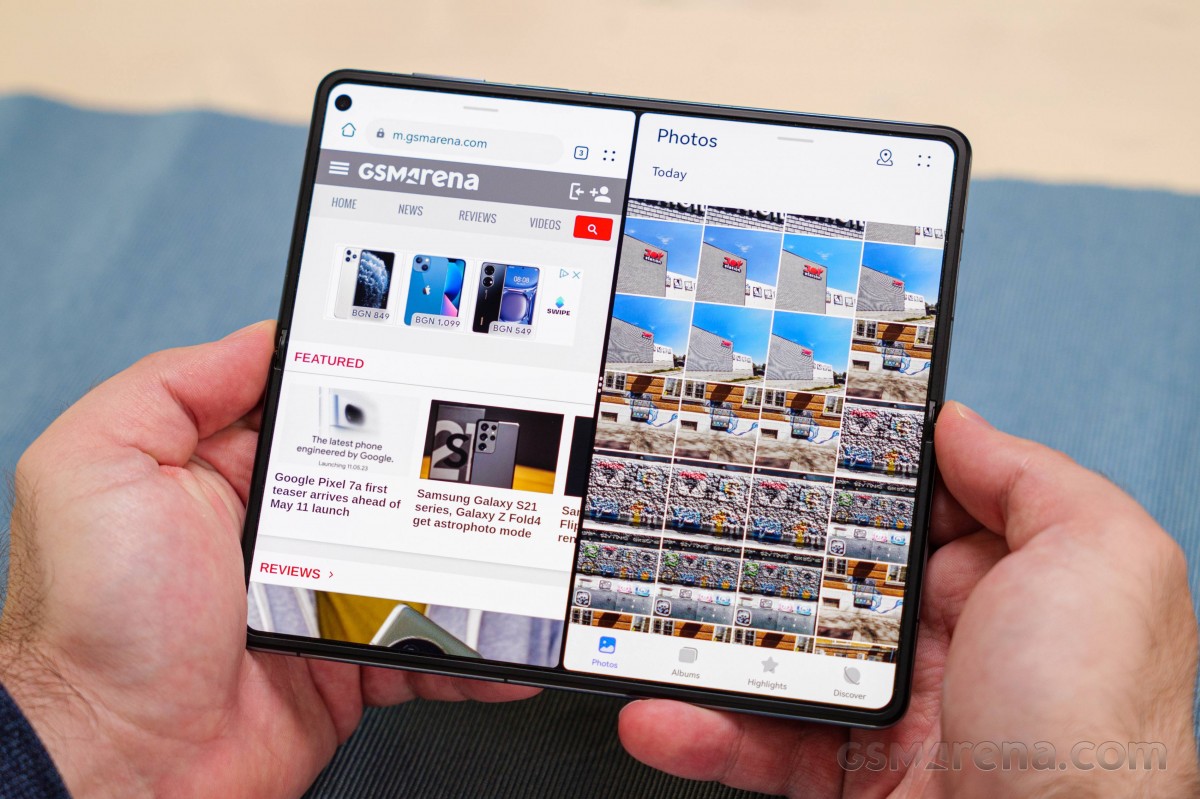
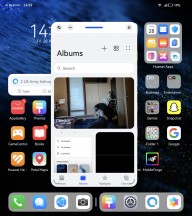
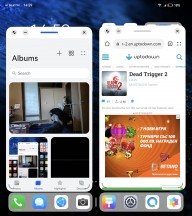
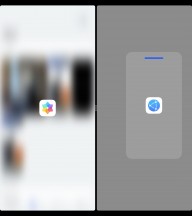
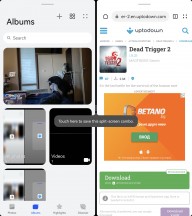
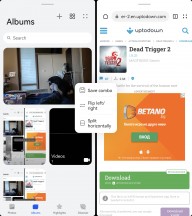
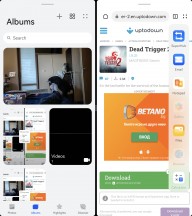
Multitasking is a familiar affair, and the task switcher allows for split-screen and/or pop-up mode. Most of the default apps support pop-up view. Multi-window (a.k.a. split screen) is available as well, but it works only via the Multi-Window Dock (swipe and hold anywhere on the left or right). Then just drag and drop an app icon over your currently opened app, et voila!
You can have multiple pop-up apps and two split-screen ones. You can also adjust the split orientation from horizontal to vertical.
Multitasking
The default OS navigation is an iPhone-like gesture - swipe up for Home, swipe up and stop midway for Task switcher, or swipe from the left or right edge of the screen for Back. You can opt for the classic virtual buttons, of course.
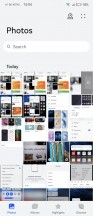
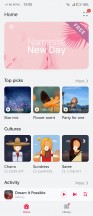
Huawei has many in-house first-party apps pre-installed on the Mate X3. There is Huawei's Gallery, Music, Video, and Health apps. A File Manager is available, as well. And there is Smart Remote - you can turn your phone into a universal remote thanks to its IR blaster.
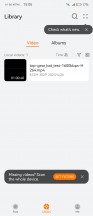
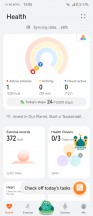
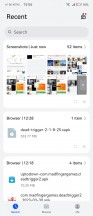
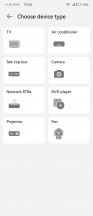
Gallery • Music • Video • Health • File manager • Smart Remote
You also get Petal Maps, Petal Search and Huawei's own Browser.



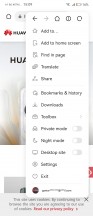
Petal Maps • Petal Maps • Petal Search • Huawei Browser
Super Storage is an interesting EMUI 13 feature. Hitting the Clean button within Storage settings reveals two new options - Compressible files and Compressible apps. Compressible files frees up space by eliminating duplicate files either by removing or stacking them and compressing other non-essential data. Compressible apps reduces the footprint of infrequently used apps to free more space without uninstalling them.
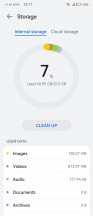
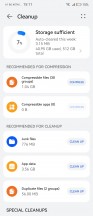
Super Storage
Sound Booster is an odd feature with a misleading name. It turns your phone into a listening device that streams the sound to your Bluetooth headphones or speaker (meaning you have to be in Bluetooth range). This could be great for babyphone purposes, as well as spying (the phone's display is usually off).
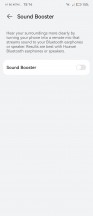
Sound Booster
Super Device shows your nearby Huawei devices - like MediaPad tablets, MediaBook laptops, Vision TVs and Freebuds and allows for much easier interaction between those - quite similar to Apple's AirPlay. Device+ offers a unified control panel to manage all connections and send audio and/or pictures to any connected Huawei devices.
Say you are wearing your Freebuds, currently connected to your Huawei smartphone. Within the Super Device control panel, you can immediately shift your Huawei TV audio to your Freebuds - no pairing, no additional tweaking - something that's usually a Bluetooth/Wi-Fi nightmare is done by tapping on a single button.
Multi-screen collaboration is available from Super Device, too. You can easily share your phone/tablet display onto your tablet/laptop screen for easy file editing and exchange and transfer various content, messages or even calls with just drag and drop or a simple click.

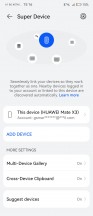
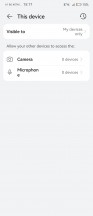
Super Device
The default app store for the Mate X3 is Huawei's AppGallery. Its app selection is constantly growing, but there are still some notable omissions, often due to the fact that the developers haven't created a specific version of their app that doesn't rely on any Google Services.
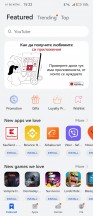

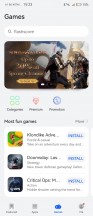

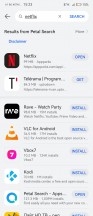
AppGallery with local and 3rd party installs
AppGallery has integrated Petal search, showing results from developers' websites and other app repositories, like APK Pure and APK Monk. It can also download the app and install it; no need to install the store apps themselves. This is particularly helpful in mitigating the lack of some apps in the AppGallery store itself.
Of course, you are not limited to the Huawei AppGallery. You can get any number of third-party app stores installed, like APKPure and Aptoide, or even Amazon's Appstore. You can install pretty much any APK file, but keep in mind that functionality relying on Google Services will be unavailable and for some apps, this means they won't even start.
You can use certain services like GBox to run some Google and Google Play Services-dependent apps with varying success. There are still notable limitations to this approach, however, and certain features like Nearby Share, Location History, and Android Auto will still not work, to name a few. Plus, we are kind of hesitant to just enter our Google account into a third-party service.
Performance and benchmarks
A Snapdragon 8+ Gen 1 chipset powers the Huawei Mate X3. It is a custom 4G version, as Huawei cannot purchase 5G-enabled chipsets. However, on the performance side, the chip remains the familiar beast. The silicon in question is getting on in age at this point, and it is worth noting that you are not getting the latest and greatest Qualcomm has to offer.
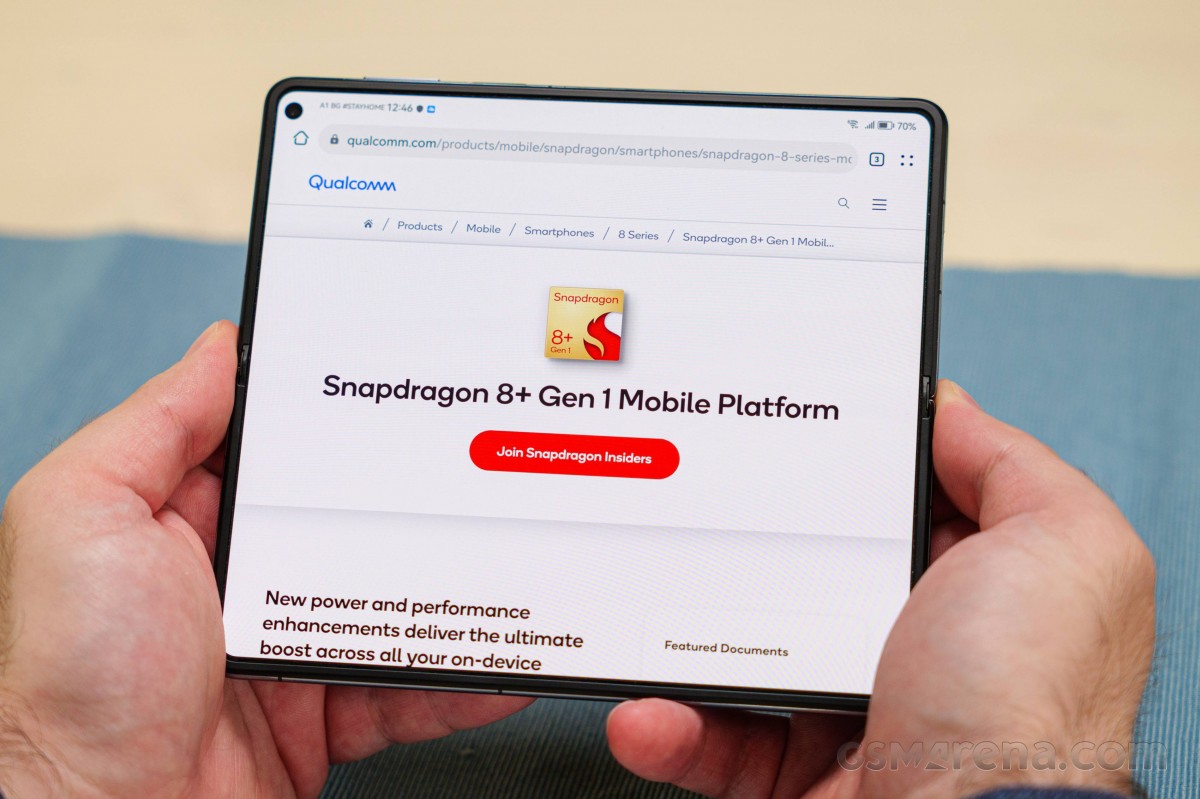
The SoC comes with an octa-core CPU in a 1+3+4 configuration, with a Cortex-X2-based prime core (up to 3.2GHz), three Cortex-A710 cores clocked up to 2.75GHz, and a quad-set of Cortex-A510 ticking at up to 2.0GHz. The GPU is Adreno 730.
The Mate X3 comes with 12GB of RAM and either 256GB, 512GB or 1TB of UFS storage. Our review unit is the middle-of-the-pack 512GB variant.
Let's kick things off with GeekBench and its CPU runs. We can see the Mate X3 holds its own pretty well within the Snapdragon 8+ Gen 1 crowd. Its scores are as expected. Naturally, it gets outpaced by Snapdragon 8 Gen 2 devices in both single and multi-core scenarios.
GeekBench 5 (multi-core)
Higher is better
-
Xiaomi Mix Fold 2
4368 -
Huawei Mate X3
4283 -
Galaxy Z Fold4
3981 -
Honor Magic Vs
3971 -
Tecno Phantom V Fold
3963 -
Oppo Find N2
3670 -
Oppo Find N
3478 -
Huawei Mate X2
3389 -
Galaxy Z Fold3 5G
3239 -
Huawei Mate Xs 2 (Unfolded)
3131 -
Huawei Mate Xs 2
3079
GeekBench 5 (single-core)
Higher is better
-
Xiaomi Mix Fold 2
1374 -
Galaxy Z Fold4
1337 -
Huawei Mate X3
1316 -
Tecno Phantom V Fold
1274 -
Galaxy Z Fold3 5G
1095 -
Oppo Find N2
1057 -
Honor Magic Vs
1033 -
Oppo Find N
985 -
Huawei Mate X2
956 -
Huawei Mate Xs 2
900 -
Huawei Mate Xs 2 (Unfolded)
884
AnTuTu is a much more compound benchmark with GPU and memory tests in the mix. It is very favorable towards the Mate X3. The performance figures are particularly impressive on the cover display of the Huawei.
AnTuTu 9
Higher is better
-
Xiaomi Mix Fold 2
1050139 -
Tecno Phantom V Fold
999348 -
Huawei Mate X3
993592 -
Galaxy Z Fold4
964530 -
Oppo Find N2
962082 -
Honor Magic Vs
831175 -
Oppo Find N
822513 -
Galaxy Z Fold3 5G
752218 -
Huawei Mate Xs 2
658825 -
Huawei Mate Xs 2 (Unfolded)
641608
When looking at GPU benchmarks like GFXBench and its on-screen tests, we need to remember the large difference in resolution between the main and the cover display on the Mate X3. It explains the huge delta in results.
GFX Aztek ES 3.1 High (onscreen)
Higher is better
-
Oppo Find N2
49 -
Galaxy Z Fold4
43 -
Xiaomi Mix Fold 2
40 -
Honor Magic Vs
36 -
Huawei Mate Xs 2
34 -
Tecno Phantom V Fold
33 -
Oppo Find N
32 -
Huawei Mate X3
31 -
Galaxy Z Fold3 5G
25 -
Huawei Mate X2
20 -
Huawei Mate Xs 2 (Unfolded)
19
GFX Aztek ES 3.1 High (offscreen 1440p)
Higher is better
-
Huawei Mate X3
46 -
Honor Magic Vs
46 -
Oppo Find N2
46 -
Xiaomi Mix Fold 2
45 -
Galaxy Z Fold4
45 -
Tecno Phantom V Fold
45 -
Oppo Find N
31 -
Huawei Mate X2
29 -
Huawei Mate Xs 2
28 -
Huawei Mate Xs 2 (Unfolded)
28 -
Galaxy Z Fold3 5G
20
GFX Aztek Vulkan High (onscreen)
Higher is better
-
Oppo Find N2
52 -
Galaxy Z Fold4
42 -
Xiaomi Mix Fold 2
41 -
Honor Magic Vs
38 -
Tecno Phantom V Fold
36 -
Huawei Mate Xs 2
34 -
Oppo Find N
33 -
Huawei Mate X3
30 -
Huawei Mate Xs 2 (Unfolded)
21 -
Galaxy Z Fold3 5G
18 -
Huawei Mate X2
12
GFX Aztek Vulkan High (offscreen 1440p)
Higher is better
-
Honor Magic Vs
51 -
Oppo Find N2
51 -
Huawei Mate X3
50 -
Xiaomi Mix Fold 2
50 -
Galaxy Z Fold4
50 -
Tecno Phantom V Fold
48 -
Huawei Mate Xs 2
31 -
Huawei Mate Xs 2 (Unfolded)
31 -
Huawei Mate X2
31 -
Oppo Find N
30 -
Galaxy Z Fold3 5G
19
The simple fact is that the Adreno 730 simply struggles to push pixels in the massive 2224 x 2496 resolution of the main display.
Things get more manageable with lower intensity and difficulty tests, but the resolution of the main display always remains a challenge to drive.
GFX Car Chase ES 3.1 (onscreen)
Higher is better
-
Oppo Find N2
59 -
Galaxy Z Fold4
59 -
Xiaomi Mix Fold 2
52 -
Oppo Find N
51 -
Huawei Mate Xs 2
51 -
Honor Magic Vs
50 -
Tecno Phantom V Fold
45 -
Huawei Mate X3
41 -
Galaxy Z Fold3 5G
38 -
Huawei Mate X2
29 -
Huawei Mate Xs 2 (Unfolded)
28
GFX Car Chase ES 3.1 (offscreen 1080p)
Higher is better
-
Oppo Find N2
104 -
Huawei Mate X3
103 -
Honor Magic Vs
103 -
Galaxy Z Fold4
102 -
Xiaomi Mix Fold 2
101 -
Tecno Phantom V Fold
89 -
Oppo Find N
73 -
Huawei Mate Xs 2 (Unfolded)
72 -
Huawei Mate Xs 2
71 -
Huawei Mate X2
61 -
Galaxy Z Fold3 5G
55
Any game beyond casual titles will more than likely struggle to take advantage of the high refresh rate of the main display on the Mate X3. Stick to casual games if you want to make use of the high refresh rate.
3DMark, with its fixed-resolution rendering, tends to offer a better look at the overall performance profile of a device. We can see that again the Mate X3 keeps up with other similarly-equipped handsets but falls a bit behind the 2023 crowd with the latest Snapdragon 8 Gen 2 chipset.
3DMark Wild Life Extreme (offscreen 1440p)
Higher is better
-
Huawei Mate X3
2831 -
Oppo Find N2
2823 -
Honor Magic Vs
2801 -
Tecno Phantom V Fold
2596
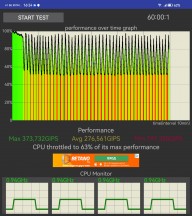
The Mate X3 gets toasty when under load. Never quite uncomfortable to hold but still rather hot, especially its aluminum frame. In terms of thermal throttling, the phone did rather poorly. Starting from around the five-minute mark, the Mate X3 starts having very stuttery performance with constant jarring drops down in performance, which can result in stutters during gaming.
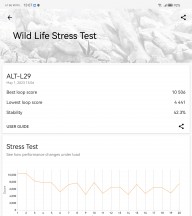
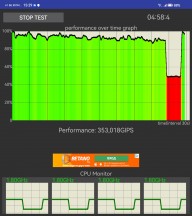
Thermal throttling
All things considered, the Huawei Mate X3 offers great performance. While it might not be based on the latest and greatest chipset, the Snapdragon 8+ Gen 1 still has plenty of "oomph" to power through pretty much any task you throw at it.
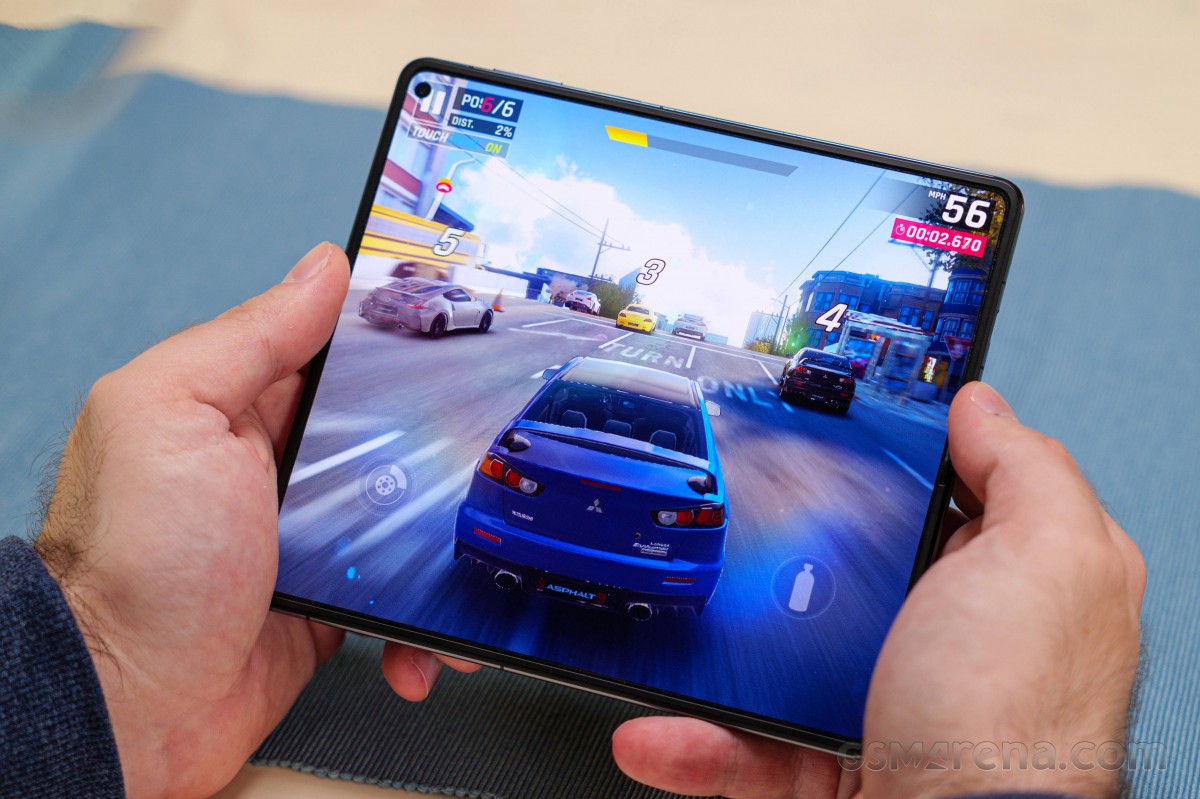
The Mate X3 runs perfectly smoothly with no hiccups or slowdowns. That being said, the high resolution nor the odd aspect ratio of the main display, for that matter, is ideal when it comes to mobile gaming.


Tip us
2.1m 180k
RSS
EV
Merch
Log in I forgot my password Sign up