Motorola Moto G 5G Plus review
Vanilla Android 10 with some Moto features on top
One of Motorola phones' key selling points is the clutter-free, clean Android experience. If you like the look and feel of stock Android, you'll certainly like this one.
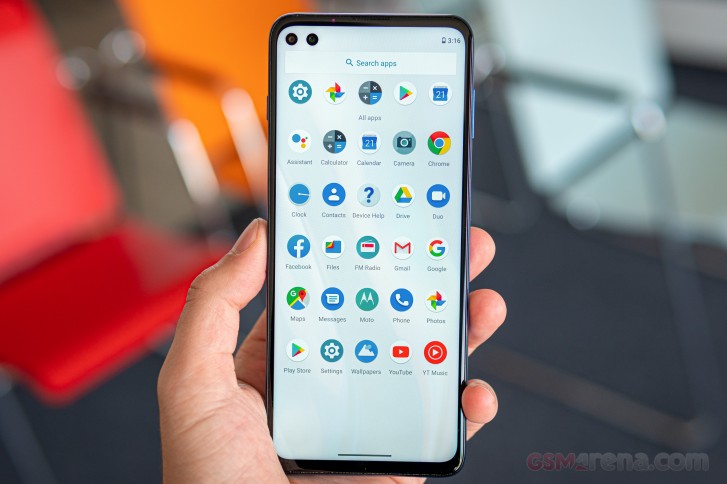
Motorola's customizations are very limited and mostly boil down to a few cool features it has added. Once you setup the phone and open up the general settings menu, you will be prompted with two messages on the top - one will take you to a menu to choose your preferred navigation method and also explaining the new gestures while the other takes you through the neatly organized Moto-specific features.
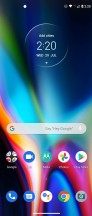
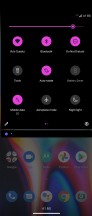
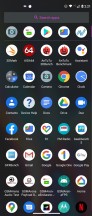
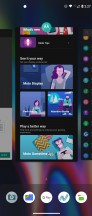
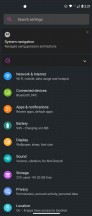
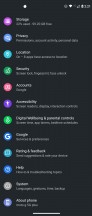
Home screen, general settings, recent apps, notification shade
The gestures are the usual ones from Google with the back gesture executed from either side of the display. There's also a slider for the back gesture sensitivity that determines how close to the edge you have to get for the system to register a back gesture. Or, if you prefer, you can stick to the good old software navigation buttons.



Moto features
Back to the Moto features - they are split into several categories with the Moto actions one being the biggest one. Among the usual ones like launching the camera with a twisting motion of the wrist or turning on the flashlight with a double chop motion, there's one fairly new addition to the list and that's the one-handed mode, which you can activate with a single swipe from the center of the screen.
Two other screen-off controls that are worth mentioning, although not new, are the lift-to-unlock and the media controls. If you have the face recognition unlock method set up, you can pick up the phone from the desk and once you raise it, the screen will turn on and the front-facing camera will start scanning for your face. That's a quick and easy way to unlock the device. The other lets you use the volume rocker for media control button when the screen is off. That's probably the only OEM that lets you do that and we really like it.
Another thing to stand out was the so-called Power Touch. It's a shortcut menu similar to Samsung's edge panel but you summon it by double-tapping on the power button, hence the name Power Touch. The panel can be customized by adding apps or tasks of your desire. One task, for example, would be to directly search in the YouTube app or perform a Google Search.
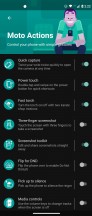
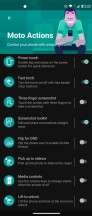
Moto Actions
Additionally, there's a whole new customization menu that wasn't available before. Similarly to OnePlus' OxygenOS, you can pick the color accent of the toggles, sliders and the quick toggles in the notification shade. You can even choose the shape of the said quick toggles. Icon shapes are also available and plenty of options to choose from and the same goes for the fonts. That's the first time Motorola lets you customize all those things on its phones.
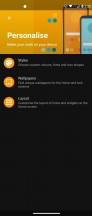
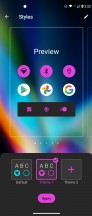
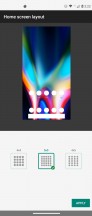
Customizable themes
The Moto Display section lets you enable Attentive display, which will prevent the screen from dimming while you are looking at it. Peek Display, on the other hand, lets you interact with notifications and even reply to messages from the locked screen. The UI is reminiscent of an Always-on display and you can check real quick if you have a notification or just see the time by tapping on the display or moving the phone altogether. The apps and notifications that let you interact with them will appear in small circles in the lower half of the display. It's a really neat feature if you want to do a quick reply or dismiss a notification without having to unlock the phone. And, of course, there's the option to require unlocking the phone when sending a reply to someone.
General settings menu
We are glad to report Motorola finally fixed its Dark Mode. Now all settings menus are in dark gray and the notification shade as well. Previous iterations of the software didn't change the color of the settings menus for some reason so it's good to see the Dark Mode cover that too. Sadly, you won't be gaining any battery life in the process as this is an LCD panel. It will be much easier on your eyes at night, though.
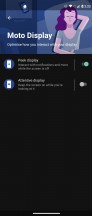
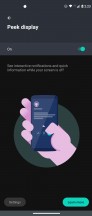
Moto Display
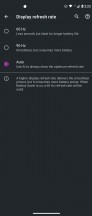
We can't miss to mention that Motorola's adaptive screen refresh rate solution is one of the best we've seen so far. There are three options in the display menu - 60Hz, 90Hz and AI control. We recommend going for the latter option as it gives you the smoothness of 90Hz when needed, while dropping the framerate in other cases to save battery.
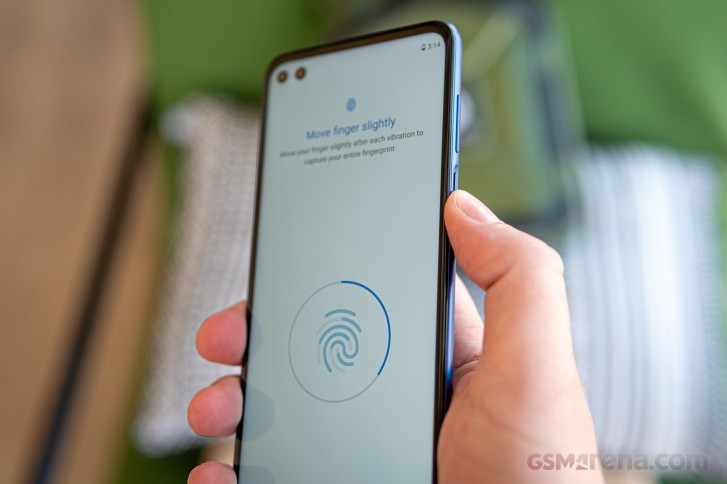
The fingerprint reader is kind of a mixed bag. It's pretty snappy and most of the times accurate. But on occassion it will just refuse to recognize a fingerprint. We found that a good firm press of the button instead of a light touch when unlocking the device works a little bit better.
Performance
Often in the past we've criticized Motorola of using outdated or underpowered chipsets compared to its direct rivals, but we are glad that's not the case here. The Moto G 5G Plus sports a Snapdragon 765 chipset based on Samsung's 7nm EUV process, which is quickly becoming the most popular mid-range 5G chip. Compared to the Snapdragon 765G, this one skips some of the gaming-related software features and settles for a slightly lower clocked GPU - both really minor differences.
The CPU consists of 8 cores split into two clusters. Two of the cores are the modified Cortex-A76 cores called Kryo 475 Gold and Prime. The Prime is clocked at 2.3 GHz while the Gold one is ticking at 2.2 GHz. The other six Kryo 475 Silver cores (based on the Cortex-A55) run at 1.8 GHz to preserve power and take care of the less demanding tasks. The GPU is the Adreno 620.
As far as 5G connectivity goes the Moto G 5G Plus is limited to just sub-6GHz bands, which makes sense considering that it's not coming to the US.
In terms of performance, the chipset is very similar to the Snapdragon 730G but offers slightly better single core performance. It scores just behind the Mi 10 Lite 5G across the board, but the differences are small enough so as not to matter.
GeekBench 4.4 (multi-core)
Higher is better
-
Xiaomi Mi 10 Lite 5G
7963 -
Realme 6
7815 -
Motorola Moto G 5G Plus
7808 -
Realme 6 Pro
7027 -
Xiaomi Mi Note 10 Lite
6639 -
Sony Xperia 10 II
5679
GeekBench 4.4 (single-core)
Higher is better
-
Xiaomi Mi 10 Lite 5G
2863 -
Motorola Moto G 5G Plus
2783 -
Realme 6 Pro
2643 -
Realme 6
2606 -
Xiaomi Mi Note 10 Lite
2429 -
Sony Xperia 10 II
1515
GeekBench 5.1 (multi-core)
Higher is better
-
Xiaomi Mi 10 Lite 5G
1927 -
Motorola Moto G 5G Plus
1898 -
Realme 6
1726 -
Motorola One Fusion+
1705 -
Xiaomi Mi Note 10 Lite
1694 -
Realme 6 Pro
1666 -
Sony Xperia 10 II
1413
GeekBench 5.1 (single-core)
Higher is better
-
Xiaomi Mi 10 Lite 5G
616 -
Motorola Moto G 5G Plus
589 -
Realme 6 Pro
565 -
Realme 6
548 -
Motorola One Fusion+
542 -
Xiaomi Mi Note 10 Lite
521 -
Sony Xperia 10 II
315
AnTuTu 8
Higher is better
-
Xiaomi Mi 10 Lite 5G
318117 -
Motorola Moto G 5G Plus
299926 -
Realme 6
288931 -
Realme 6 Pro
268785 -
Motorola One Fusion+
267980 -
Xiaomi Mi Note 10 Lite
253271 -
Sony Xperia 10 II
196545
GFX 3.1 Manhattan (1080p offscreen)
Higher is better
-
Xiaomi Mi 10 Lite 5G
38 -
Motorola Moto G 5G Plus
33 -
Realme 6
31 -
Realme 6 Pro
30 -
Xiaomi Mi Note 10 Lite
30 -
Motorola One Fusion+
27 -
Sony Xperia 10 II
13
GFX 3.1 Manhattan (onscreen)
Higher is better
-
Xiaomi Mi 10 Lite 5G
32 -
Motorola Moto G 5G Plus
29 -
Realme 6 Pro
27 -
Realme 6
27 -
Xiaomi Mi Note 10 Lite
26 -
Motorola One Fusion+
25 -
Sony Xperia 10 II
10
GFX 3.1 Car scene (1080p offscreen)
Higher is better
-
Xiaomi Mi 10 Lite 5G
21 -
Motorola Moto G 5G Plus
19 -
Realme 6 Pro
18 -
Realme 6
18 -
Xiaomi Mi Note 10 Lite
17 -
Motorola One Fusion+
16 -
Sony Xperia 10 II
7.1
GFX 3.1 Car scene (onscreen)
Higher is better
-
Xiaomi Mi 10 Lite 5G
17 -
Motorola Moto G 5G Plus
16 -
Realme 6 Pro
16 -
Realme 6
16 -
Xiaomi Mi Note 10 Lite
15 -
Motorola One Fusion+
14 -
Sony Xperia 10 II
5.6
3DMark SSE Vulkan 1440p
Higher is better
-
Xiaomi Mi 10 Lite 5G
3080 -
Motorola Moto G 5G Plus
2821 -
Realme 6
2619 -
Realme 6 Pro
2334 -
Xiaomi Mi Note 10 Lite
2248 -
Sony Xperia 10 II
1121


Tip us
2.1m 180k
RSS
EV
Merch
Log in I forgot my password Sign up